Your premier podcast/media instrument, now extensible, capable of YouTubing


What could possibly go wrong?

Runs on Android, controls Mixxx on a computer.

Create reusable cards for quick access when non-verbal communication is needed. - vadimerenkov/Aucards


Advocating for Android as a free, open platform for everyone to build apps on.
[It turns out the dialog to separately toggle biometric usage for the lock screen and in apps is unique to CalyxOS, and possibly Graphene.]
biometric_keyguard_enabled isn’t a system property that lives in the getprop/setprop namespace.
It’s a Secure Settings key that Android stores in the Settings.Secure table (the same place where things like “stay‑on‑while‑plugged‑in” or “show‑password‑characters” live).
Because of that:
adb shell getprop won’t list it – getprop only shows properties that are part of the Android property service.
setprop can only touch properties that are declared as writable for the shell user. biometric_keyguard_enabled isn’t on that whitelist, so the kernel logs a failure (the “see dmesg” line) and you get the “Permission denied” when you try to read the log without root.
How to change it without rooting
The shell user (the one you get when you run adb shell) does have permission to modify many Secure Settings keys via the settings command. Try the following:
Check the current value (0 = disabled, 1 = enabled)
adb shell settings get secure biometric_keyguard_enabled
Disable the biometric keyguard
adb shell settings put secure biometric_keyguard_enabled 0
Re‑enable it later if you wish
adb shell settings put secure biometric_keyguard_enabled 1
A few notes:
Value semantics – The setting expects an integer (0 or 1). Using false/true will be rejected.
Immediate effect – Most Secure Settings changes take effect right away, but some UI components may cache the old value until you lock/unlock the device or restart the System UI. If you don’t see the change instantly, try toggling the screen off/on or issuing adb shell am restart (which restarts the activity manager).
Device‑specific behavior – LineageOS may expose additional safeguards or UI toggles for this feature. If the command returns “null” or “SecurityException”, the build you’re using might have removed the key entirely. In that case the setting can’t be altered via settings.
No root needed – Because you’re using the settings tool as the shell user, you don’t need root access. The only thing you can’t do without root is edit the underlying property service (setprop) for keys that aren’t whitelisted.
Why dmesg is blocked
On a non‑rooted device the shell user isn’t allowed to read the kernel log (klogctl). That’s why adb shell dmesg prints “Permission denied”. It’s unrelated to the setting itself; it’s just a security measure to prevent ordinary users from snooping on kernel messages.
TL;DR
What you triedWhy it failedWhat to do insteadadb shell getprop / setprop biometric_keyguard_enabled …Not a system property; not writable for shellUse the settings command on the secure namespaceadb shell dmesgKernel log is restricted to rootNo need to view it; the failure reason is already reported by setprop
Give the settings commands a try and you should be able to toggle the biometric keyguard without needing root. If you encounter a “SecurityException” or the key isn’t present, the particular LineageOS build you’re on simply doesn’t expose that setting. In that case you’d need to rely on the UI toggle (if any) or flash a custom build that includes the option.
Website for Bass OS, a product-focused open-source OS based on AOSP, Android-x86 and Bliss OS that is highly configurable and created to allow a variety of features to be included and configuration options to be tuned out-of-the-box, letting one source cover a variety of different devices
BlissOS?
https://appuals.com/install-blissos-on-uefi-system/
https://github.com/BlissOS
The Xperia devices can be licensed by paying for the ability to use the Android runtime in Sailfish.
Value sweet spot: Xperia 10 III dual-SIM, but without US 5G bands
https://www.gsmarena.com/sony_xperia_10_iii-10698.php
Xperia XA2 (4g) can run iodé
Jolla C2 is reasonably affordable
Volla phones can run it too, besides Ubuntu Touch
https://forum.sailfishos.org/t/volla-installation-guide/16658
Privacy-friendly selection of apps We have preinstalled for you a selection of privacy-friendly apps, listed below. It is to be noted that we also have made the uninstallation of preinstalled apps possible with iodéOS! iodé The place to control and visualize the data transmissions from your phone.
OnePlus 9
Pixel 5, 6...
Fairphone
Xperia 1V, 5V: firmware not included

Ubuntu Touch or AOSP
Similar products with hardware switches for privacy:
Purism Librem - also USA-made $2k version
Furi Labs FLX
Other open-source-friendly phones
Murena, /e/OS
- HIROH phone - expensive
Fairphone - direct and Murena sales include /e/OS, also compatible with CalyxOS (but not GrapheneOS)
PinePhone


Forked from CopperheadOS. Solid alternative to CalyxOS.

Remove the fear of Android app compatibility on de-Googled devices.
Extract Apk file from Google Play URL or Package name | Download Android apps/games quickly & securely with APK Extractor. No restrictions! Get APK/XAPK Now.
Safe Android apps, available in the play store

Sad that the Divested Mobile project shut down!
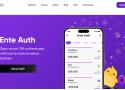
another cross-platform TOTP authenticator